
Maths — No Problem! Customers
If your school is new to Pomegranate, you’ll receive an email invite to get started. Here’s how to set up your school and invite your teachers.
Check your email for the admin invite
Open the email invite titled “Join [your school's name] on Pomegranate”. Check your spam or junk folder for messages from Pomegranate. Follow the prompts to complete the sign-up process.
Read detailed instructions on getting set up as an administrator.
Manage your school subscription settings
Review your school’s subscription details, including the subscription plan, number of seats, and renewal dates.
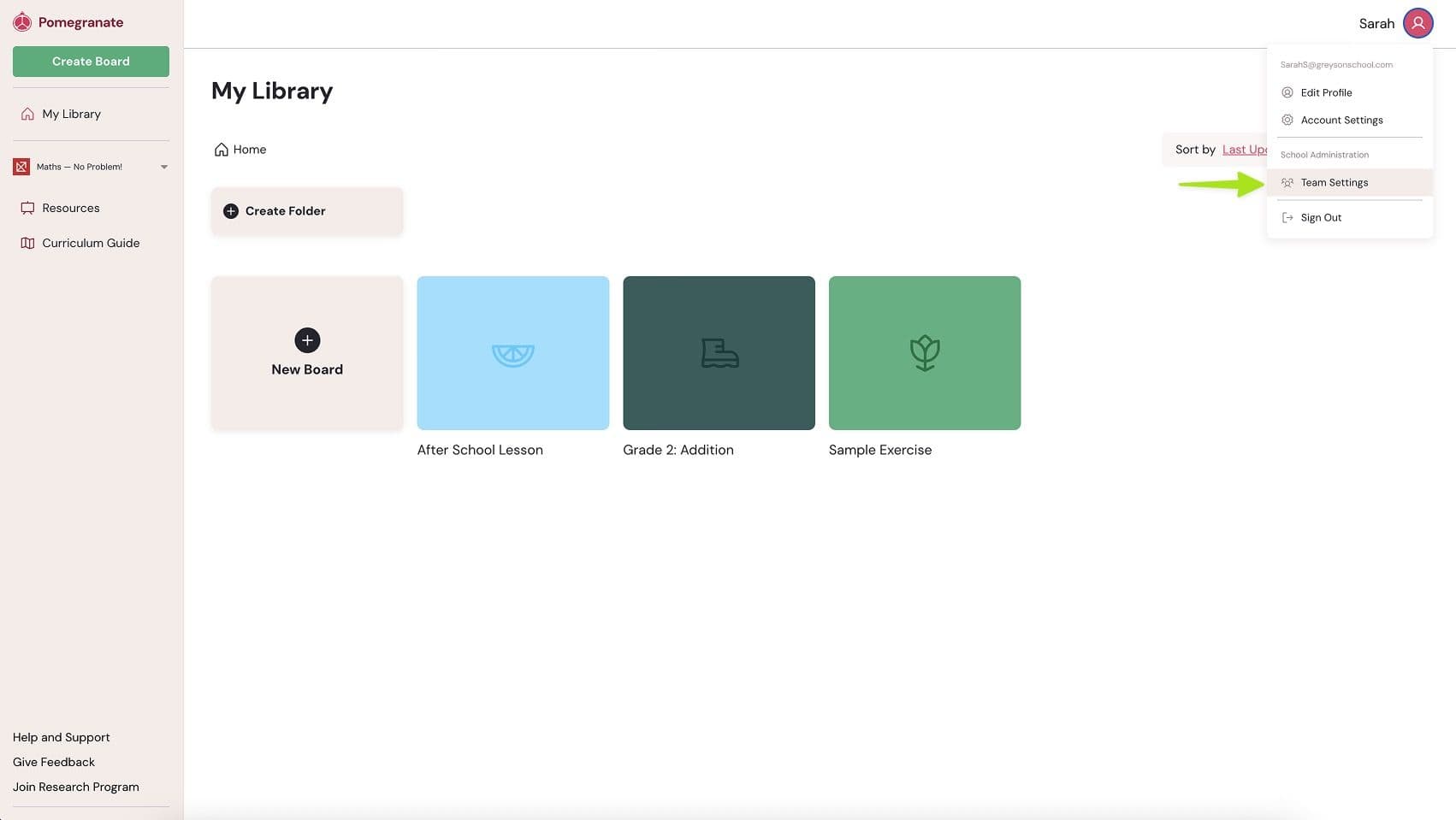
Once you’re signed in:
- Go to "Team Settings"
- Click on the "Subscriptions" tab
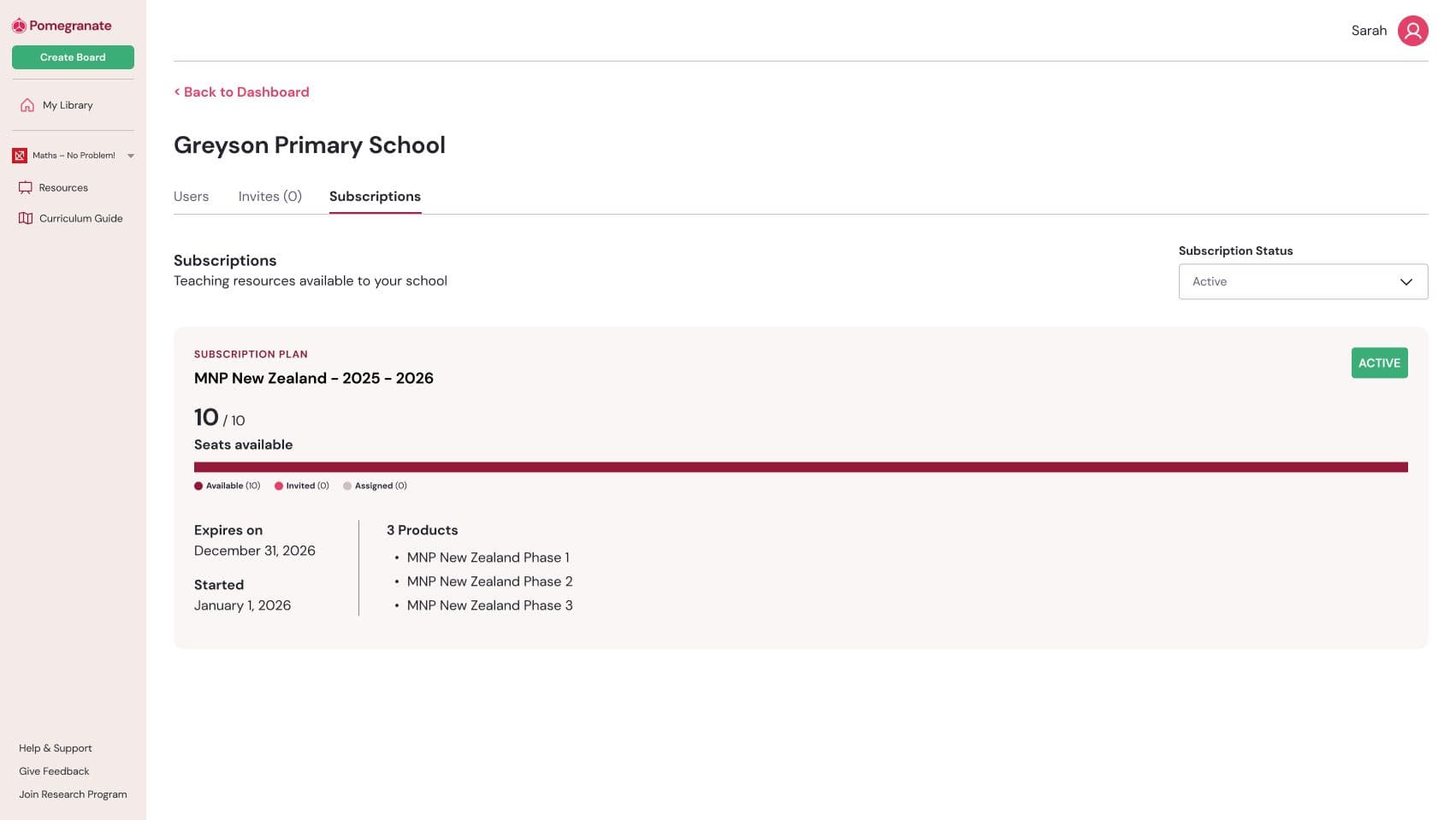
- You'll be able to review how many seats are available. The system will track assigned seats, invited seats, when the subscription expires, and what products are included.
Users Tab
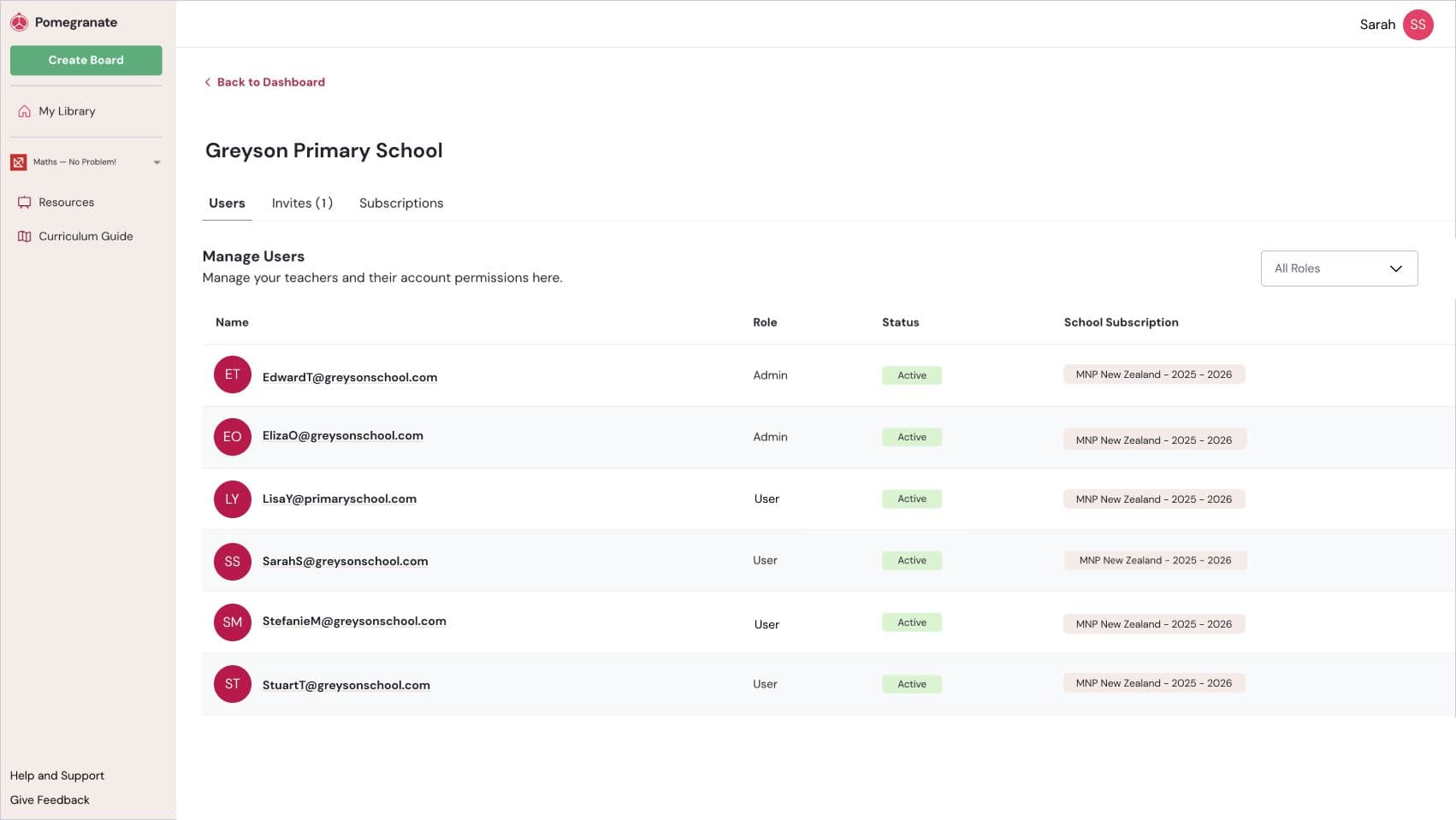
The Users tab helps you see who has access to your school subscription and what their role is.
- Users & Roles
- Admin Role: Permissions to manage the subscription and invite others.
- User/Member Role: viewing access only.
- School Subscription: Shows which parts of Pomegranate each user has access to.
- Invite Status:
- Active – the invite has been accepted.
- Pending – the invite is still awaiting acceptance.
- Expired – the invite link no longer works because it’s been more than 3 months
- Inviting Users: You can invite as many teachers as you like, but the number of subscriptions you can assign is limited by the seats available in your plan.
Subscriptions Tab
The Subscriptions tab gives an overview of your school’s subscription details.
- Your Subscription: Shows the subscription plan your school is on.
- Included Products: Lists all Pomegranate products included in your plan.
- Expiry Date: Shows when the subscription will renew or expire.
- Seats: Displays the total number of seats available and how many are currently assigned.
Invite teachers to your school
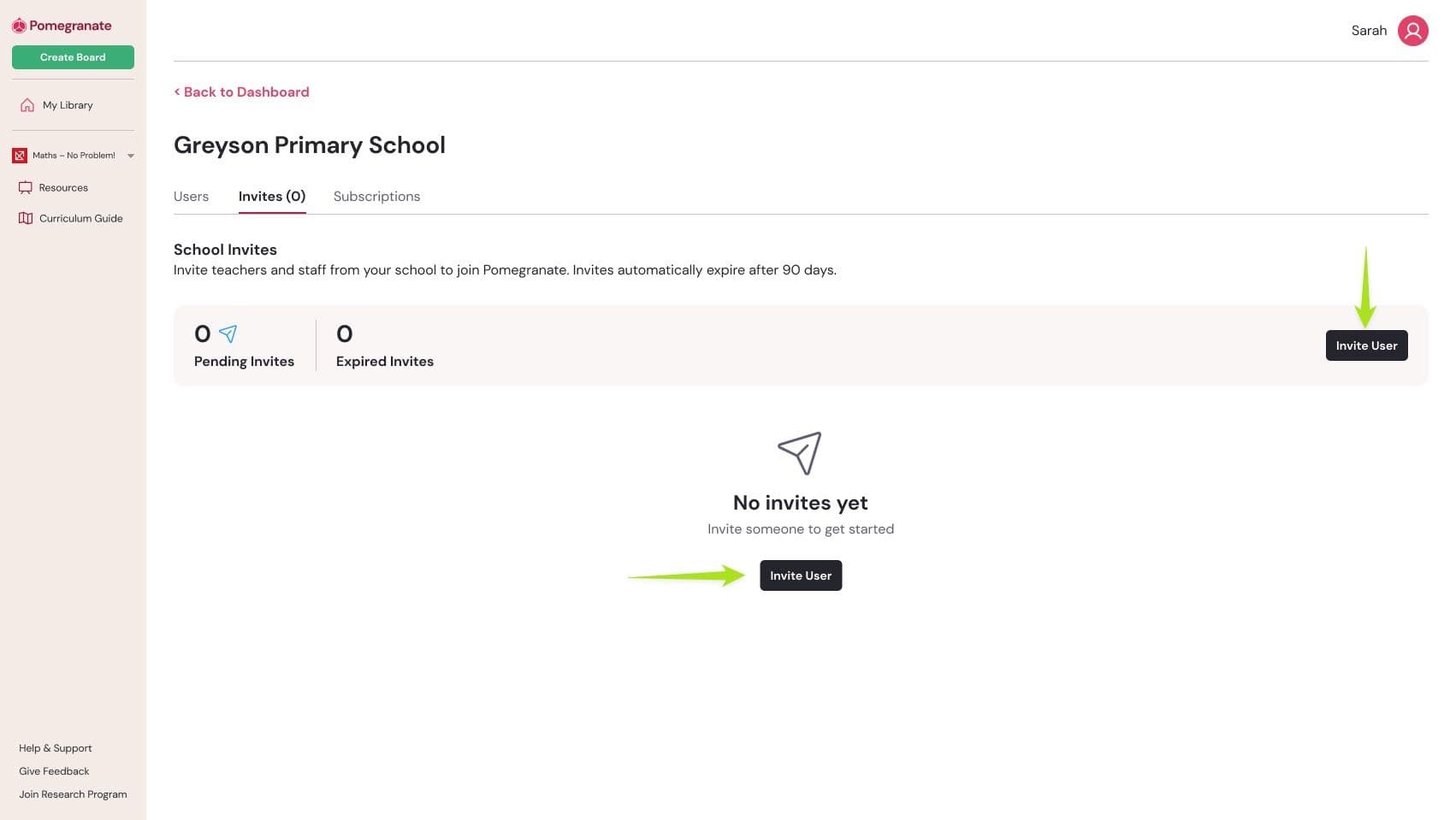
From the Invites tab, click "Invite User", where you'll be asked to enter each teacher’s email address. We always recommend you use school-issued email addresses).
- Select a role:
- "Member" gives a user permission to view content.
- "Admin" gives a user permission to view content, as well as the ability to add/remove users.
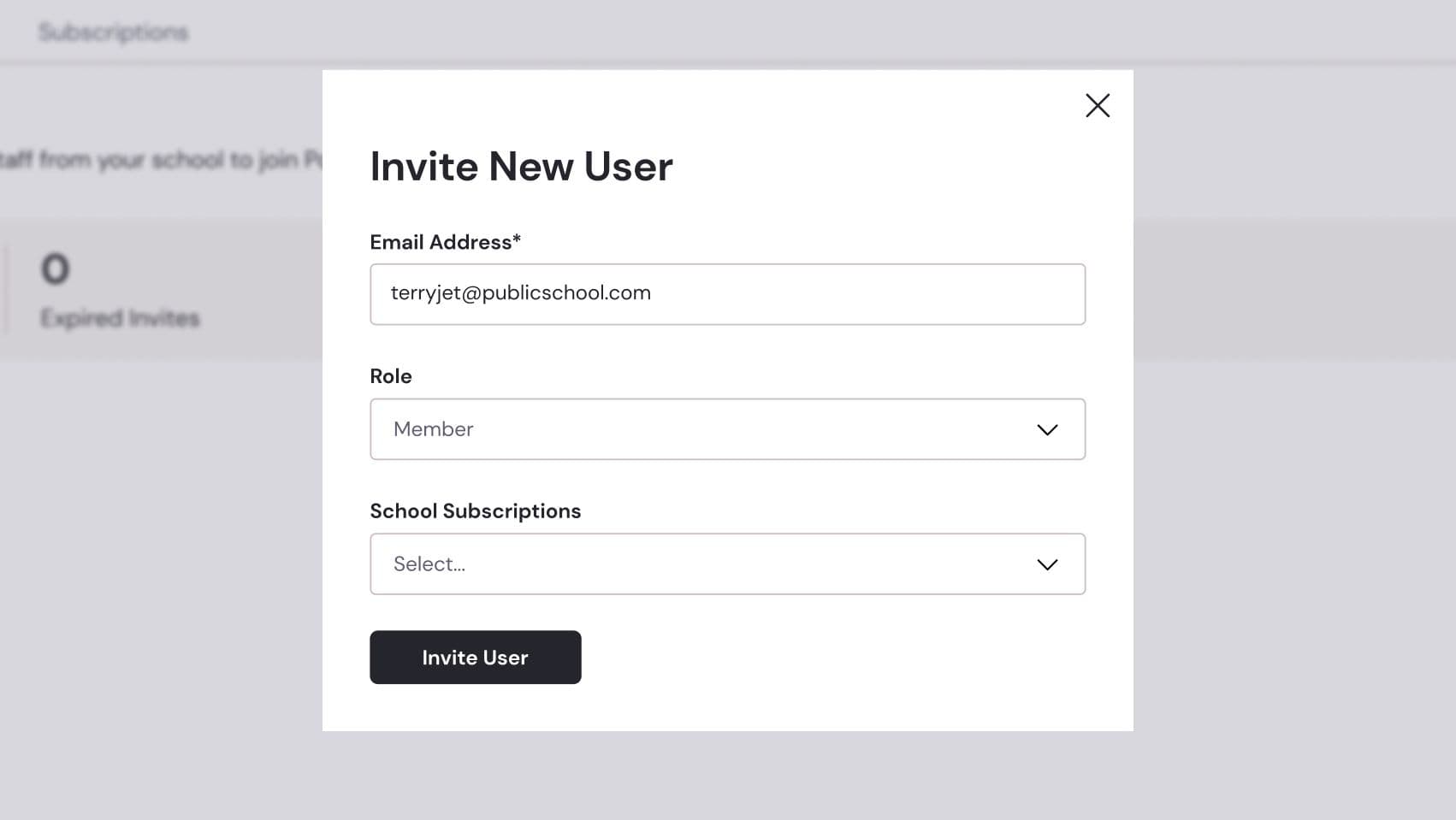
- Select a School Subscription to assign. Typically there will only be one choice available.
- Click "Invite User" to send the invite. The invited person receive an email from Pomegranate with a link to join your school.
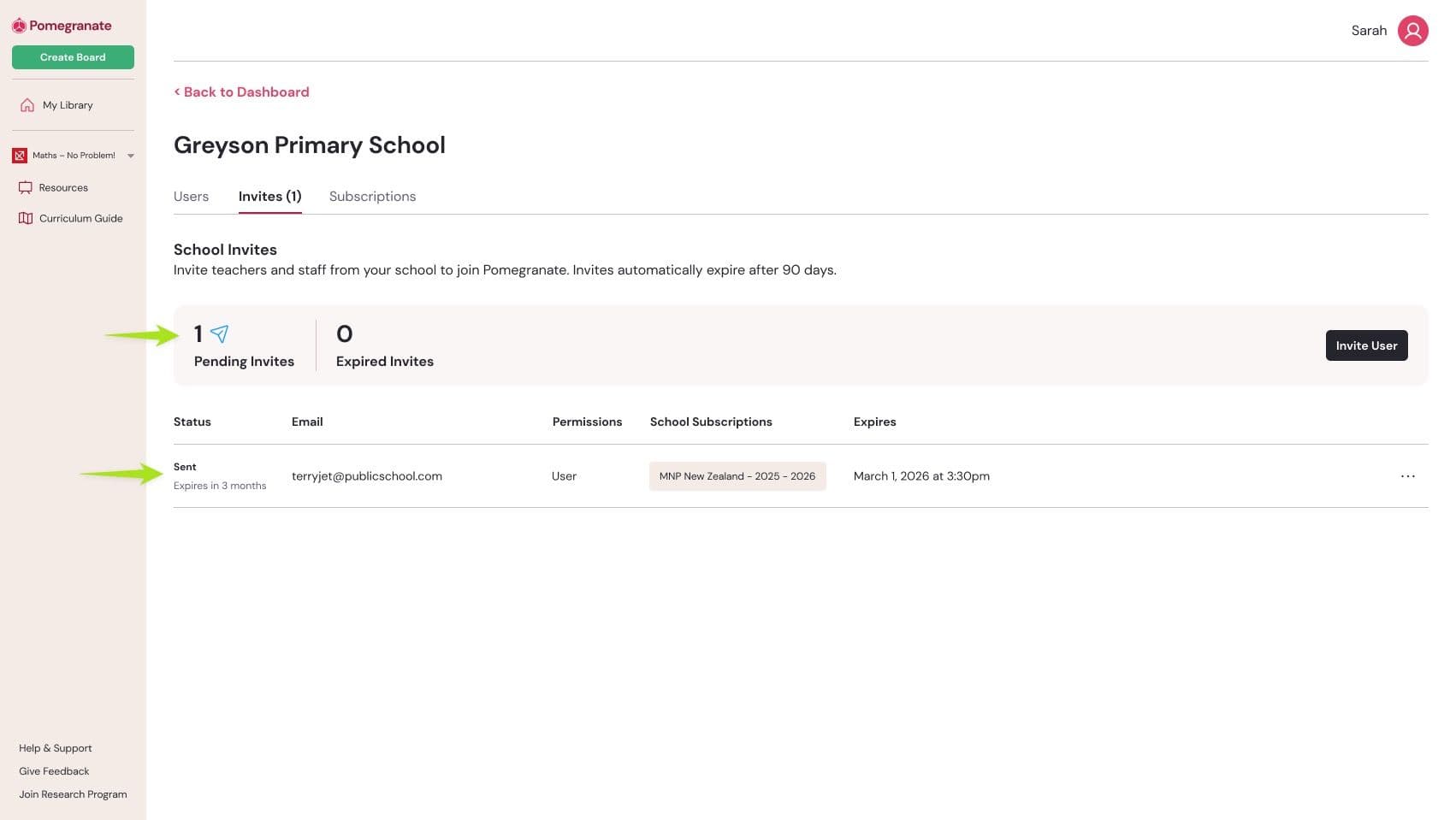
- After sending the Invite, you'll see their info listed in the Invites table and an updated number of Pending Invites.
- Invites automatically expire after 3 months, or when your school subscription ends (whichever comes first). Admins have the ability to reset the expiry date by re-sending the invite.
Note: If you don't select a subscription when sending an invite, the teacher will simply join your school without permissions to see any publisher content. You can always manage what they have access to at a later date.
Make sure teachers have joined
You can check to see if a teacher has successfully joined your school.
- Check the status of your invite on the Invites tab. If you see their invite still listed and pending, this means the teacher hasn't accepted yet.
- Check the list of Users tab. Once a teacher has accepted an invite, their info will appear at the bottom of the list on this page, and your original invite will disappear.
Note: Teachers should also check their spam or junk folder if they don’t see the invite within a few minutes.
Check the number of seats available in your subscription
- Double-check in your subscription details that you have enough seats for all teachers and staff in the subscription, and remember that administrators could also be occupying a seat. (You can choose to remove subscription access from an administrator to gain a seat back, and this won’t affect their permissions to manage other users)
- If all the seats have been assigned, you'll see a notification on the Invite screen that stops you from inviting more teachers.
- Reach out to your publisher directly if your school need more seats.